Firebase Test Lab CI Using Jenkins
Running Android Tests on cloud devices using a Jenkins CI server (Firebase Test Lab — Amazon Device Farm — Genymotion Cloud)
As I personally think the Android Emulator is not reliable at all for CI streamlining, I used an actual Android device plug to the CI server to run Android tests which is probably not a realistic or feasible setup for most developer teams that use VPS or cloud CI services.
Furthermore buying and having a dozen of Android devices just used for CI Android testing maybe is not the most budget friendly approach.
So what alternatives do we have to run Android Tests?
The answer is Cloud devices, actual Android devices plug somewhere in the universe that you can rent for the time you
need to run your Android tests.
In this article I’m going to explain how to integrate into a Jenkins job just 3 solutions, Google Firebase Test Lab, Amazon Device Farm and Genymotion Cloud. Probably there are more or even better ones but I just wanted to focus on the few IMHO consider the most popular.
I start with probably the most obvious option, Google’s one, but I have to say that I found all the setup process a bit fussy, it should be easier. It is tied to their Firebase environment and at this moment there is no Jenkins Plugin to integrate easily.
Pre-requisites
- Your app has to be part of a Firebase Project on a “Blaze” plan (see plans pricing here)
- Obviously you app has to integrate Firebase plugin.
Google Firebase Test Lab Environment Configuration:
Step 1. The CI server requires Google Cloud SDK
to be installed.
Run these commands in a shell of your Ubuntu machine:
# Create an environment variable for the correct distribution$ export CLOUD_SDK_REPO="cloud-sdk-$(lsb_release -c -s)"
# Add the Cloud SDK distribution URI as a package source$ echo "deb https://packages.cloud.google.com/apt $CLOUD_SDK_REPO main" | sudo tee -a /etc/apt/sources.list.d/google-cloud-sdk.list
# Import the Google Cloud Platform public key$ curl https://packages.cloud.google.com/apt/doc/apt-key.gpg | sudo apt-key add -
# Update the package list and install the Cloud SDK$ sudo apt-get update && sudo apt-get install google-cloud-sdk
Then init the SDK and when prompted to log in answer NO,
we answer no because we want to use de Google SDK “as a program”
instead of “as a person”
$ gcloud init
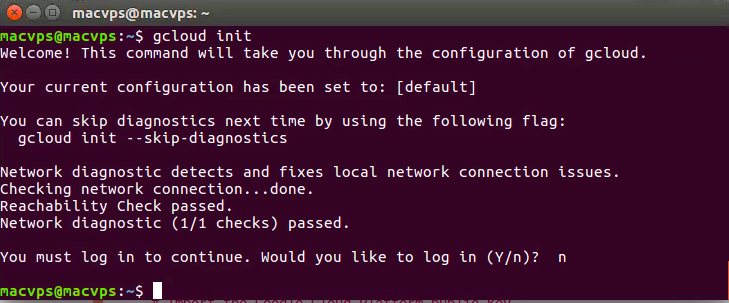
Answer NO when prompted to log in
Step 2. Create a service account to log in as a program
- Go to https://console.cloud.google.com and select the same project your app is hosted in Firebase.
- Click on Enable and mange APIs -> Credentials -> Create Credentials -> Create Service Account Key and fill the data like in this screenshot
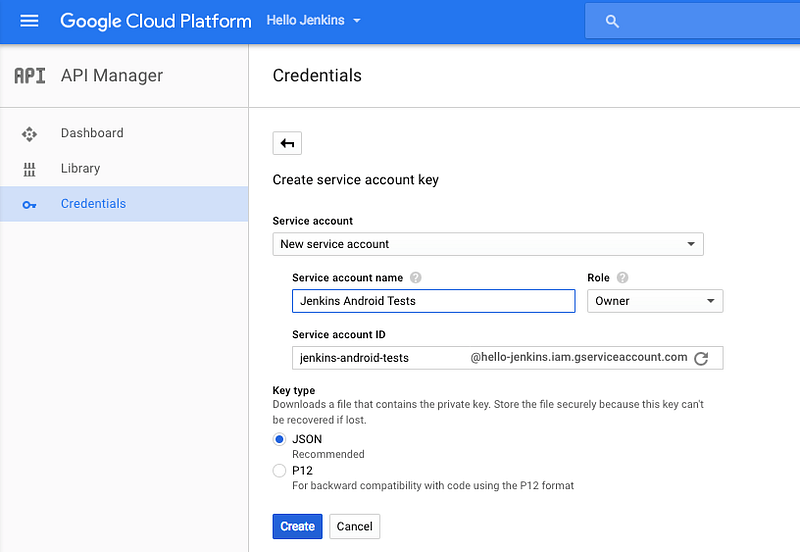
Creating service account key
This will generate a .JSON file with the service account configuration.
Now let's go back to the terminal and type:
$ gcloud auth activate-service-account --key-file="yourFile.json"
If everything is OK you should get an “Activated service account credentials for …” message.
We must grant permissions to our Jenkins user too:
#first give reading permissions to yourFile.json$ chmod 777 yourFile.json
#Init a bash session as jenkins$ sudo su -s /bin/bash jenkins
#Init sdk for jenkins$ gcloud init
.... say again NO to login
#Finally add service-account credentials too$ gcloud auth activate-service-account --key-file="yourFile.json"
Step 3. Enable Google Cloud Testing Api and Cloud Tool
Results API
- Again, go to https://console.cloud.google.com ->
- Enable and manage APIs.
- Enable both APIs (use the toolbar search if not listed).
Step 4. Create your Testing Device Matrix YML config file
You can get a list of the available devices and
emulators using this command:
$ gcloud firebase test android models list

Available devices and emulators in Firebase Test Lab
In the Android project root create a file called
e.g. firebase-test-matrix.yml
nexus5-device:type: instrumentationtimeout: 10mdevice-ids: hammerheados-version-ids: [19, 23]locales: enlgG4-device:type: instrumentationtimeout: 10mdevice-ids: p1os-version-ids: 22locales: es
In this configuration we are creating two device Matrix:
- A.)First one runs the tests in two Nexus 5 devices, one with platform 19 and the other 23, both with locale en.
- B.)Second one runs the tests in just a single LG G4 device running
- platform 22 with locale es.
You can find more configuration params here.
Jenkins job configuration
To run Android Instrumentation Tests we need two apk,
so with gradle we have to run the tasks:
clean -> cleans all previous build outputs to ensure build freshness
assembleDebug -> generates app-debug.apk
assembleAndroidTest -> generates instrumentation app-debug-
androidTest.apk
1.)On top of The Configuration we set the following if we want to access
our code from other branch under Git Parameter.
And define Choice parameter to define GRADLE_PATH.
1.)On top of The Configuration we set the following if we want to access
our code from other branch under Git Parameter.
And define Choice parameter to define GRADLE_PATH.
 | ||||||||||||||||||||||||||||||||||||||||||||||||||||||||||||||||||||||||||||||||||||||||||

2.)Under Invoke Gradle Script,
Select Use Gradle Wrapper.
a.)Check "Make gradlew executable"
b.)Give Wrapper location"gradlew location kept in root
of the project".
eg:-/Users/abhishekthakur/.jenkins/workspace/AppTesting/androidnew
c.)Tasks = clean assembleDebug assembleAndroidTest
d.)Root Build script = /Users/abhishekthakur/.jenkins/workspace/AppTesting/androidnew/b2capp
2.)Under Execute shell,
As there is no Firebase Test Lab Jenkins plugin we have to add an
“Execute Shell” build step after the gradle build step. In addition
I haven’t been able to run the test on all defined matrix in the .
YML file with just a single line so we have to invoke each of the
defined matrix it its own command.
The structure is as follows:
gcloud beta test android run
pathToConfiguration.yml:matrix-name
--app pathToDebug.apk
--test pathToDebugAndroidTest.apk
--project yourFirebaseProjectId
gcloud firebase test android run/Users/abhishekthakur/.jenkins/workspace/AppTesting/androidnew/b2capp/\ firebasetestmatrix.yml:nexus5-device--app/Users/abhishekthakur/.jenkins/workspace/AppTesting/androidnew/b2capp/build/outputs/apk/b2capp-autoTest-debug.apk--test /Users/abhishekthakur/.jenkins/workspace/AppTesting/androidnew/b2capp/build/outputs/apk/b2capp-autoTest-debug-androidTest.apk--project viatesting-177707
gcloud firebase test android runfirebase-test-matrix.yml:lgG4-device--app app/build/outputs/apk/app-debug.apk--test app/build/outputs/apk/app-debug-androidTest.apk--project hello-jerkins
/viaindex/jenkins/googlecloud_sdk/google-cloud-sdk/bin/gcloud
firebase test android run
/viaindex/jenkins/workspace/AEB2BIntlFlightsTest/\ fire-base-testmatrix.yml:Nexus5-device
--test-targets "class app.intlb2b.testcases.UAE.UAEB2BIntlFlightsTestcase"
--app /viaindex/jenkins/workspace/AEB2BIntlFlightsTest/androidnew/appb2b/build/outputs/apk/appb2b-debug.apk
--test /viaindex/jenkins/workspace/AEB2BIntlFlightsTest/androidnew/appb2b/build/outputs/apk/appb2b-debug-androidTest.apk --project viatesting-177707
This is how your Jenkins job configuration should look:
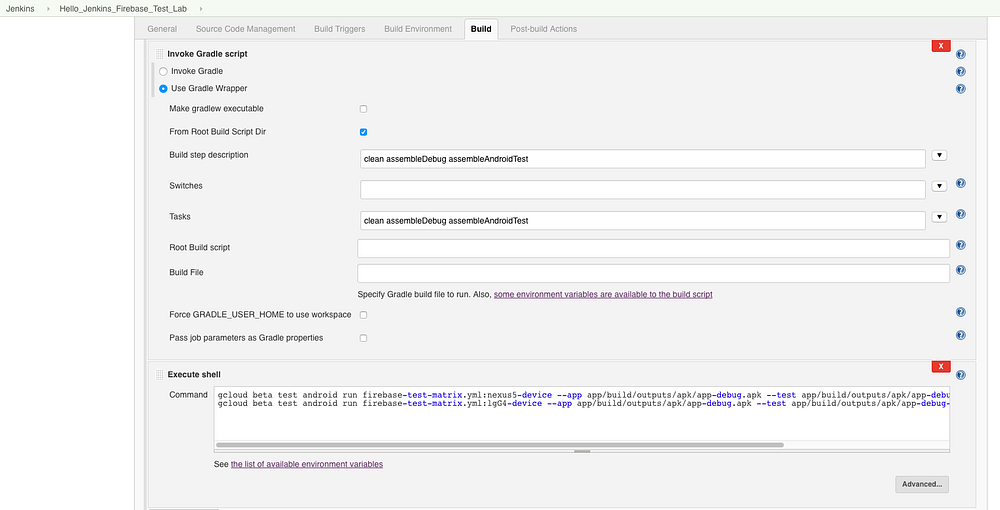
Invoking Firebase Test Lab execution
And this is the end of the console output of a successful build
and Android Tests execution:
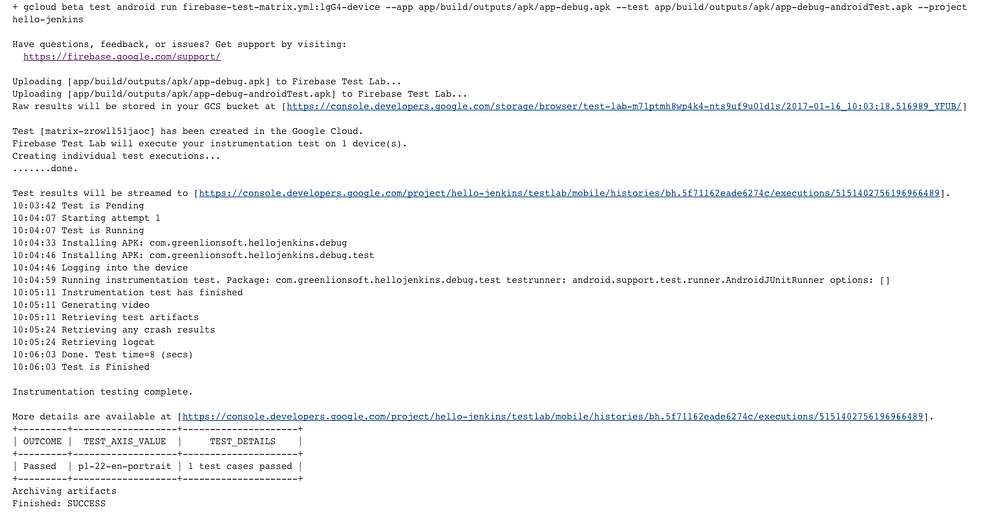
As you can see the output just states whether the Android
Test cases passed or not. Extensive details of the test including videos will be available at you Firebase Console.

Thank you for sharing this valuable information I like this article, I can share it with my circle of friends.
ReplyDeleteGCP Training Online
Online GCP Training